Feature article · published January 2026 · 9 min read
From raw clips to a 30-second Reel: a complete editing walkthrough
You have twenty clips on your phone and one idea. This is the exact order of operations we recommend for turning them into a tight, captioned vertical video — without getting lost in effects before the story works.
By the Zappisagasprnt editorial team · Works in any editor: CapCut, DaVinci Resolve, Premiere Pro, Final Cut Pro or Canva. Menu names vary by app and version.
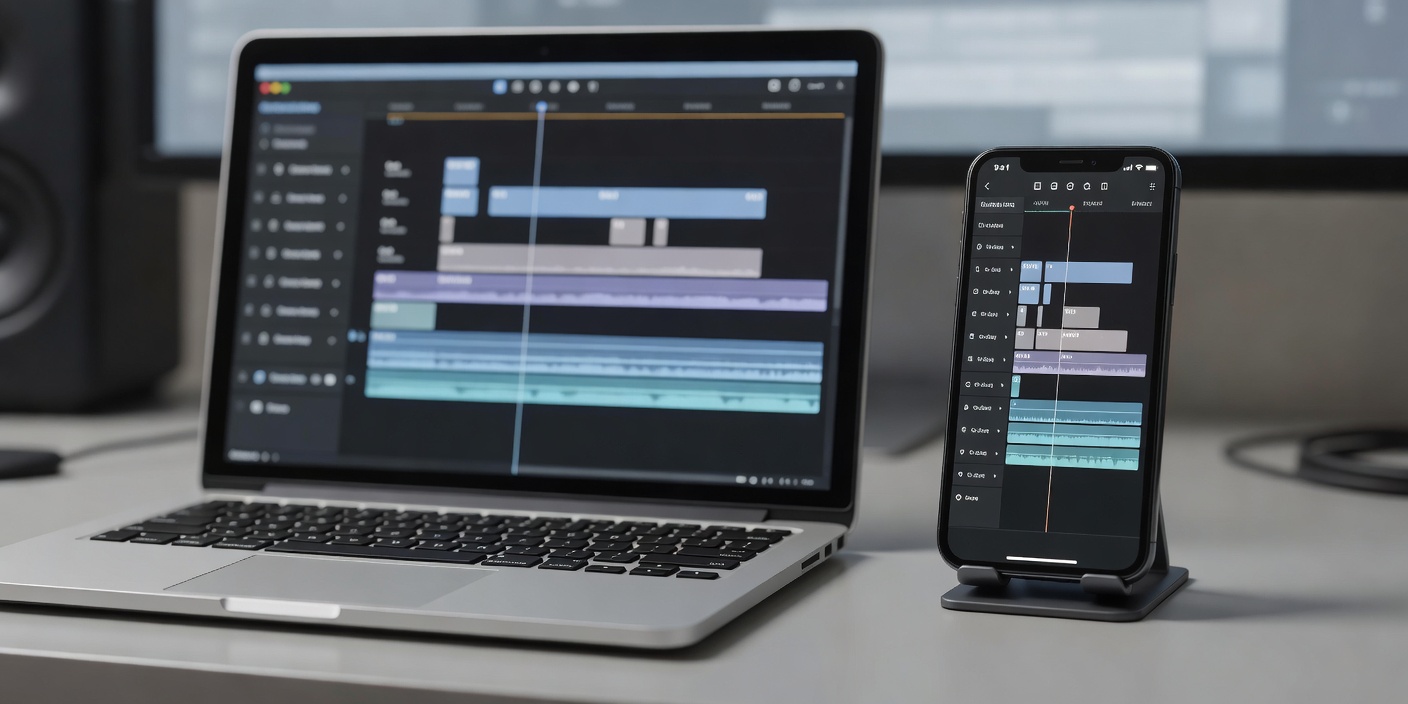
Illustrative photo. Edit the story first, decorate it second.
Step 01
Plan before you import
Most slow edits are slow because the decision about what the video is gets made on the timeline. Make it on paper instead. Write one sentence that finishes “By the end, the viewer will…”. If you can't write it, you're not ready to cut.
Then sketch four beats. For a 30-second video, a reliable split looks like this:
Suggested timing for a 30-second vertical video
Beat
Time
Job
Typical shots
Hook
0–2 s
Make a promise or show the result
Finished outcome, bold line to camera
Value
2–22 s
Deliver the steps, reasons or story
Close-ups, screen captures, B-roll
Payoff
22–27 s
Prove it worked
Before/after, reveal, reaction
Call to action
27–30 s
One specific next step
Creator to camera, end card
One idea per video. If you find yourself planning a second payoff, that's your next video.
Step 02
Set up the project
Canvas: 9:16, 1080×1920. Set it before adding any text so titles and captions are positioned for vertical delivery.
Frame rate: match your footage — usually 30 fps from phones, sometimes 24, 25, 50 or 60. Mixing rates is fine; converting the whole timeline unnecessarily is where judder creeps in.
Folders: even for a short video, keep footage, audio, graphics and exports separate, plus a place to save licence pages for any music or stock you use.
Safe zones: drop our free 9:16 safe-zone SVG on the top layer now, and switch it off before export.
Step 03
The rough cut
Put everything you might use on the main track in story order, then remove material in passes rather than trying to make each clip perfect immediately.
Selects pass: delete takes that are out of focus, badly lit or redundant. Be ruthless — a 30-second video uses perhaps 10–15% of what you shot.
Pause pass: split and remove breaths, false starts and “um”s. On talking-head footage this alone often halves the runtime.
Pace pass: in fast-paced content, aim for a new visual roughly every 1–3 seconds. Cover jump cuts with B-roll or a small scale change.
Length pass: if you're over time, cut whole ideas, not frames from every clip.
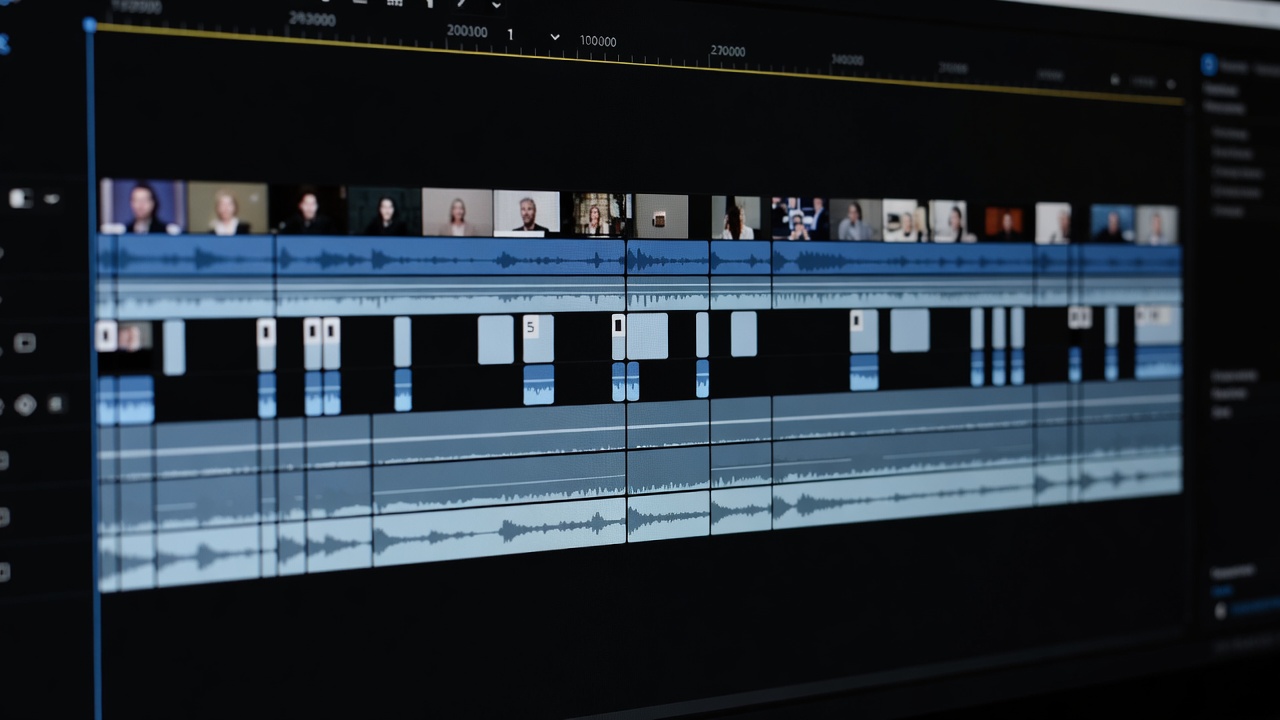
Illustrative photo. The rough cut is about removing, not adding.
Practise this structure risk-free in our Timeline Builder, which lets you reorder and resize sample clips across five tracks.
Step 04
Build the hook last — and put it first
Once the middle works, you know what the best moment is. That moment usually belongs in the first two seconds. Common hooks that work:
Result first: show the finished thing, then rewind to how.
Specific promise: “Three cuts that make any tutorial feel faster.”
Visible problem: the mistake everyone recognises, on screen.
Avoid opening on a logo, a slow fade-in or “Hey guys”. Pair the opening shot with a short on-screen title — our kinetic Reels title spec gives frame-accurate timing you can rebuild in any editor.
Step 05
Captions that people can actually read
Many viewers start with sound off, so captions carry the message. Auto-captions are a great first draft and a poor final one.
Proofread every line, especially names, numbers, brand terms and jargon.
Two lines maximum, around 32 characters per line or fewer on vertical video. Break lines at natural phrases.
Size: 40–56 px on a 1080 px-wide frame is a readable range for body captions.
Contrast: aim for at least 4.5:1 between text and its background — a semi-opaque panel or outline makes that achievable over busy footage.
Placement: the lower third, clear of the bottom fifth and the right-hand action buttons.
Viewers forgive soft footage far more readily than bad audio.
Voice first: set dialogue levels before adding music. Apply noise reduction gently — overdoing it sounds underwater.
Duck the music: keep it well under the voice, often 12–20 dB lower, so every word is clear.
Cut on the beat: mark beats while the track plays, then snap cuts to markers.
Sell the motion: a whoosh under a whip pan or a soft hit under a title makes visual moves feel deliberate.
Check the licence: music from in-app libraries may only be licensed for use inside that platform. If you'll post the export elsewhere, confirm first.
Step 07
Polish with restraint
Effects should support meaning, not cover for a weak cut. Lock the edit before you touch them.
One signature transition per video. A hard cut on action remains the best default.
Punch-ins (a 105–120% scale over a few frames) emphasise a key word. Use two or three, not twenty.
Consistent colour: match shots to each other first, then apply a single look. Our free Warm Film .cube LUT works in editors that support LUT import.
Watch at full speed and at 0.5× — full speed shows pacing problems, half speed shows flash frames and rough cuts.
See transitions side by side in the Effects Playground before you build them.
Step 08
Export and review
Resolution: 1080×1920.
Frame rate: same as your timeline and source.
Codec: H.264 in MP4 is widely accepted; H.265/HEVC where the platform supports it.
Bitrate: generous — platforms re-compress uploads, so start with plenty of quality.
Audio: AAC, 48 kHz, stereo.
Then do the step most people skip: watch the exported file on a phone, start to finish, before uploading. Check the first frame, caption placement against the app's interface, and whether the hook still lands at actual size.
Editorial note: this article is general guidance based on common short-form practice and providers' official documentation, last reviewed January 2026. Zappisagasprnt is not affiliated with or endorsed by any software provider or platform mentioned, and has no affiliate relationships; all outbound links are plain official links.